

Documentation Index
Fetch the complete documentation index at: https://docs.pluvo.io/llms.txt
Use this file to discover all available pages before exploring further.
Merging Scenarios
Once you’ve built and reviewed a scenario branch, you can merge it back into the Base Scenario. This lets you promote an alternate plan to become your new source of truth—without having to rebuild it manually. Merging is a key part of Pluvo’s base/branch system: it lets you keep your planning agile while staying anchored to a single, trusted baseline.How to Merge a Scenario
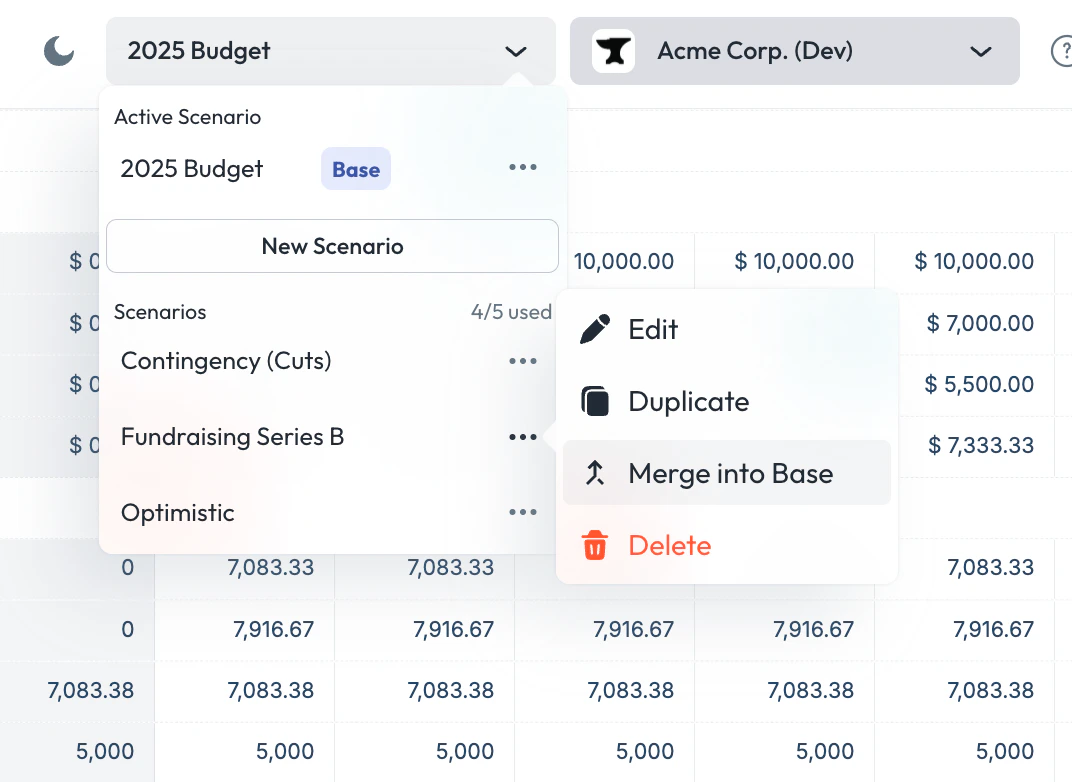
Merging a scenario allows you to take all changes from a branch and apply them to the base scenario—perfect for locking in final decisions or approved plans.To merge a scenario:
- Click the Scenario dropdown at the top of the screen.
- Find the scenario you want to merge.
- Click the three-dot menu next to that scenario.
- Select “Merge to base.”
What Happens When You Merge
When you merge a scenario (e.g. “Optimistic”) into the Base:- The Base Scenario is replaced with the full definition of the scenario you’re merging
- All other scenarios will immediately inherit updated values from the new Base, but only in areas where they are still linked
- Any variables or cells that were de-linked in other scenarios remain untouched
Example
Let’s say your Base Scenario reflects your approved budget, and you’ve created a scenario called “Mid-Year Reforecast.” In that scenario, you:- Increase headcount
- Adjust sales growth
- Add a one-time bonus in June
- All Base logic is replaced with the new assumptions
- Other scenarios like “Worst Case” now reflect the new Base—but only for linked variables and cells
- Any previously de-linked cells or fully de-linked variables in those scenarios stay unchanged
What Does Not Happen
Merging does not:- Restore links to de-linked variables or cells in other scenarios
- Create a backup of the old Base
- Affect
Merge Logic Overview
| Scenario Element | Affected by Merge? | Notes | | ----------------------------------- | ------------------ | ------------------------ | | Linked variable (unchanged) | ✅ Yes | Inherits new Base logic | | Fully de-linked variable | ❌ No | Retains custom logic | | De-linked cell | ❌ No | Cell remains independent | | Integration Data | ❌ No | Always shared globally | | Variable structure (e.g. name/type) | ❌ No | Always shared globally |When to Merge
Merging is useful when:- A forecast becomes your new “official” plan
- You want to roll reforecasting assumptions into the main model
- You’re cleaning up scenario sprawl and consolidating logic
Best Practices
- Save a copy of the Base Scenario before merging if you want a fallback (coming soon)
- Communicate with your team before merging—it affects downstream logic
- Keep an eye on de-linked logic in other scenarios so you know what won’t update
- After merging, audit your other scenarios for alignment
Need help planning a merge or cleaning up your scenario tree? Contact support.