# Documentation
> Guides and release notes for Pluvo, the AI Decision Engine for the modern enterprise.
## Docs
- [Connect your stack](https://docs.pluvo.io/connect-your-stack.md)
- [Workflows](https://docs.pluvo.io/key-concepts.md)
- [Currencies](https://docs.pluvo.io/modelling/concepts/currencies.md): When you create a variable with type `currency`, you must specify which currency.
- [Formulas](https://docs.pluvo.io/modelling/concepts/formulas.md): To reference a variable in a formula, type `#` to bring up the variable search menu. You can then start typing to filter and select the variable you need. This
- [Dates in Formulas](https://docs.pluvo.io/modelling/concepts/formulas/dates-in-formulas.md)
- [Formula Errors and Troubleshooting](https://docs.pluvo.io/modelling/concepts/formulas/formula-errors-and-troubleshooting.md): Whoops! This page is currently under construction, but we'll let you know when it's ready
- [Useful Functions](https://docs.pluvo.io/modelling/concepts/formulas/useful-functions.md)
- [Scenarios](https://docs.pluvo.io/modelling/concepts/scenarios.md): Scenarios in Pluvo let you explore “what if” versions of your financial model—so you can plan for growth, downturns, and everything in between without
- [Base Scenarios](https://docs.pluvo.io/modelling/concepts/scenarios/base-scenarios.md): Every organization in Pluvo has one **Base Scenario**—your financial source of truth. Other scenarios are branches created from the base that inherit
- [Create, Duplicate, and Delete Scenarios](https://docs.pluvo.io/modelling/concepts/scenarios/create-duplicate-and-delete-scenarios.md): In order to create a new scenario, you will need to click on the scenario dropdown menu. In the previous section, we simply clicked between existing scenarios.
- [Merging Scenarios](https://docs.pluvo.io/modelling/concepts/scenarios/merging-scenarios.md): Once you've built and reviewed a scenario branch, you can **merge it back into the Base Scenario**. This lets you promote an alternate plan to become your new
- [Switching Scenario](https://docs.pluvo.io/modelling/concepts/scenarios/switching-scenario.md): The dropdown menu that greets you will display your active scenario. A list of all other created scenarios will appear vertically below the ‘New Scenario’
- [Time](https://docs.pluvo.io/modelling/concepts/time.md): Time scales are used with variables in [formulas](/modelling/concepts/formulas) to fetch the value at a certain moment in time. For example, #**New Revenue
- [Time in Formulas](https://docs.pluvo.io/modelling/concepts/time/time-in-formulas.md)
- [Exports](https://docs.pluvo.io/modelling/exports.md): Pluvo lets you export to both .csv and .xlsx
- [Dashboards & Charts](https://docs.pluvo.io/modelling/features/dashboards-and-charts.md): Dashboards allow you to keep track of certain drivers, metrics, and accounts in a more user-friendly and visual way than you are typically used to. Each
- [Charts](https://docs.pluvo.io/modelling/features/dashboards-and-charts/charts.md): This page is under construction, check back soon!
- [Comparing Scenarios in Dashboards](https://docs.pluvo.io/modelling/features/dashboards-and-charts/comparing-scenarios-in-dashboards.md): This page is under construction, check back soon!
- [Edit Dashboard Layouts](https://docs.pluvo.io/modelling/features/dashboards-and-charts/edit-dashboard-layouts.md): Customizing your dashboard layouts are a great way to personalize your experience.
- [Sparklines](https://docs.pluvo.io/modelling/features/dashboards-and-charts/sparklines.md): Sparklines are small charts that display in grids to help you quickly visualize how an amount is changing over time.
- [Dimensions](https://docs.pluvo.io/modelling/features/dimensions.md): Please contact [support@pluvo.io](mailto:support@pluvo.io) to activate dimensions in your organization.
- [Dimensions Basics](https://docs.pluvo.io/modelling/features/dimensions/dimensions-basics.md): Dimensions are a data type in Pluvo, just like other variables. You can use dimensions to categorize data and perform lookups.
- [Dimensions in Formulas](https://docs.pluvo.io/modelling/features/dimensions/dimensions-in-formulas.md): Once your dimensions are set up, you can start referencing them directly in formulas to make your calculations more precise. This is useful when you only want
- [Dimensions vs Properties](https://docs.pluvo.io/modelling/features/dimensions/dimensions-vs-properties.md)
- [Integration Dimensions](https://docs.pluvo.io/modelling/features/dimensions/integration-dimensions.md): Integration Dimensions are dimensions pulled directly from your connected accounting software and applied to **variables** in Pluvo.
- [Dimension Mapping](https://docs.pluvo.io/modelling/features/dimensions/integration-dimensions/dimension-mapping.md)
- [Grids](https://docs.pluvo.io/modelling/features/grids.md): We just released all new grids! Keep reading to learn your way around.
- [Integrations](https://docs.pluvo.io/modelling/features/integrations.md)
- [Accounting Integrations](https://docs.pluvo.io/modelling/features/integrations/accounting-integrations.md): When you first access Pluvo, you will be greeted by an organization with no data in it. No worries! We need to sync your financial data to Pluvo before your
- [NetSuite](https://docs.pluvo.io/modelling/features/integrations/accounting-integrations/netsuite.md): For questions about Netsuite integration please reach out directly to your account manager or contact us at [support@pluvo.io](mailto:support@pluvo.io)
- [QuickBooks Online](https://docs.pluvo.io/modelling/features/integrations/accounting-integrations/quickbooks-online.md): Pluvo integrates directly with **QuickBooks Online (QBO)** to bring in real-time financial data and keep your models aligned with your accounting system.
- [Sage](https://docs.pluvo.io/modelling/features/integrations/accounting-integrations/sage.md): For questions about Sage accounting integration please reach out directly to your account manager or contact us at [support@pluvo.io](mailto:support@pluvo.io)
- [Xero](https://docs.pluvo.io/modelling/features/integrations/accounting-integrations/xero.md): Pluvo integrates with **Xero** to automatically pull in your financial data, so your models stay accurate and up to date without manual entry.
- [CRM Integrations](https://docs.pluvo.io/modelling/features/integrations/crm-integrations.md): Whoops! This page is currently under construction, but we'll let you know when it's ready
- [HRIS Integrations](https://docs.pluvo.io/modelling/features/integrations/hris-integrations.md): Whoops! This page is currently under construction, but we'll let you know when it's ready
- [Other Integrations](https://docs.pluvo.io/modelling/features/integrations/other-integrations.md): Whoops! This page is currently under construction, but we'll let you know when it's ready
- [Refresh Integration Data](https://docs.pluvo.io/modelling/features/integrations/refresh-integration-data.md): In this section we will cover how to refresh your Quickbooks or Xero data within Pluvo:
- [Spreadsheets & Data Integrations](https://docs.pluvo.io/modelling/features/integrations/spreadsheets-and-data-integrations.md): Whoops! This page is currently under construction, but we'll let you know when it's ready
- [Models](https://docs.pluvo.io/modelling/features/models.md): Models are the foundation of financial planning in Pluvo.
- [Toolbar](https://docs.pluvo.io/modelling/features/models/toolbar.md)
- [Multi-entity & Consolidations](https://docs.pluvo.io/modelling/features/multi-entity-and-consolidations.md): This article is under construction. Check back soon for more info! In the meantime if you have any questions please contact
- [Variables](https://docs.pluvo.io/modelling/features/variables.md): In Pluvo, forecasting is built around variables. Variables are simply any piece of data that can be referenced in a formula. Think of them as cells in an
- [Actuals Definitions](https://docs.pluvo.io/modelling/features/variables/actuals-definitions.md): In Pluvo, a variable’s **actuals definition** controls how historical or real-world values are populated. While many actuals come from accounting systems (like
- [Drivers](https://docs.pluvo.io/modelling/features/variables/drivers.md): Drivers are being migrated to variables. Information on this page may be outdated until the migration is complete.
- [Build a Custom Driver](https://docs.pluvo.io/modelling/features/variables/drivers/build-a-custom-driver.md): Let’s say that we want to forecast the amount of revenue that each new full time employee (FTE) in Sales will bring us. This will give us a great example of
- [Create a New Driver](https://docs.pluvo.io/modelling/features/variables/drivers/create-a-new-driver.md): note: '**Value Rules' have been renamed to 'Forecasts'.** You may still see references to Value Rules in text or images while we change over our materials.
- [Driver Categories and Sub-Categories](https://docs.pluvo.io/modelling/features/variables/drivers/create-a-new-driver/driver-categories-and-sub-categories.md)
- [Folders](https://docs.pluvo.io/modelling/features/variables/folders.md): Folders help you organize variables within your model. They make complex models easier to read, group, and manage—especially when you’re working with lots of
- [Forecast Definitions](https://docs.pluvo.io/modelling/features/variables/forecast-definitions.md): Every variable in Pluvo includes a **forecast definition**—this is the logic or input that drives your model forward.
- [Importing Variables](https://docs.pluvo.io/modelling/features/variables/importing-variables.md): Variables from Another Model
- [Metrics](https://docs.pluvo.io/modelling/features/variables/metrics.md): Metrics are being migrated into Variables. information on this page may be outdated until the migration is complete
- [Build a Custom Metric](https://docs.pluvo.io/modelling/features/variables/metrics/build-a-custom-metric.md): In this knowledge article, we will discover how to create metrics and use those metrics to track our Key Performance Indicators (KPI). Our example will be
- [Variance](https://docs.pluvo.io/modelling/features/variance.md): Actuals)
- [Variance in Charts](https://docs.pluvo.io/modelling/features/variance/variance-in-charts.md): There are two main ways to look at forecast vs actuals in charts.
- [Variance in Grids](https://docs.pluvo.io/modelling/features/variance/variance-in-grids.md): There are three amount types available in Pluvo. If you've done financial planning before, these should be familiar with you.
- [Building a 3-statement model](https://docs.pluvo.io/modelling/guides/building-a-3-statement-model.md): A **3-statement model** is the backbone of financial planning and analysis. It connects a company’s three core financial statements:
- [Balance Sheet](https://docs.pluvo.io/modelling/guides/building-a-3-statement-model/balance-sheet.md): Building a Balance Sheet
- [Cash Flow Statement](https://docs.pluvo.io/modelling/guides/building-a-3-statement-model/cash-flow-statement.md): Building a Cash Flow Statement
- [Profit and Loss (P&L)](https://docs.pluvo.io/modelling/guides/building-a-3-statement-model/profit-and-loss-p-and-l.md): The **Profit & Loss statement (**also called the Income Statement) is the core of most financial models. It tracks revenue, expenses, and profitability
- [Org Switcher](https://docs.pluvo.io/modelling/org-switcher.md): This display will inform you of your current organizations. All other organizations you belong to will appear in a vertical dropdown once you have clicked on
- [Pluvo Help Center](https://docs.pluvo.io/modelling/resources/pluvo-help-center.md): To access the Pluvo help center, click on the question mark icon next to your user profile icon in the top right of any screen in pluvo..
- [Privacy Policy](https://docs.pluvo.io/modelling/resources/privacy-policy.md): This Privacy Policy describes Our policies and procedures on the collection, use and disclosure of Your information when You use the Service and tells You
- [Settings](https://docs.pluvo.io/modelling/settings.md)
- [Account Settings](https://docs.pluvo.io/modelling/settings/account-settings.md): Access the account settings by clicking your profile picture in the top right and selecting `account` .
- [Day/Night Mode](https://docs.pluvo.io/modelling/settings/day-night-mode.md): You can quickly change between Day/Night display mode by selecting the sun or moon icon at the top of your interface.
- [Organization Settings](https://docs.pluvo.io/modelling/settings/organization-settings.md): The organization settings hub will allow you to:
- [Audit Logs](https://docs.pluvo.io/modelling/settings/organization-settings/audit-logs.md): 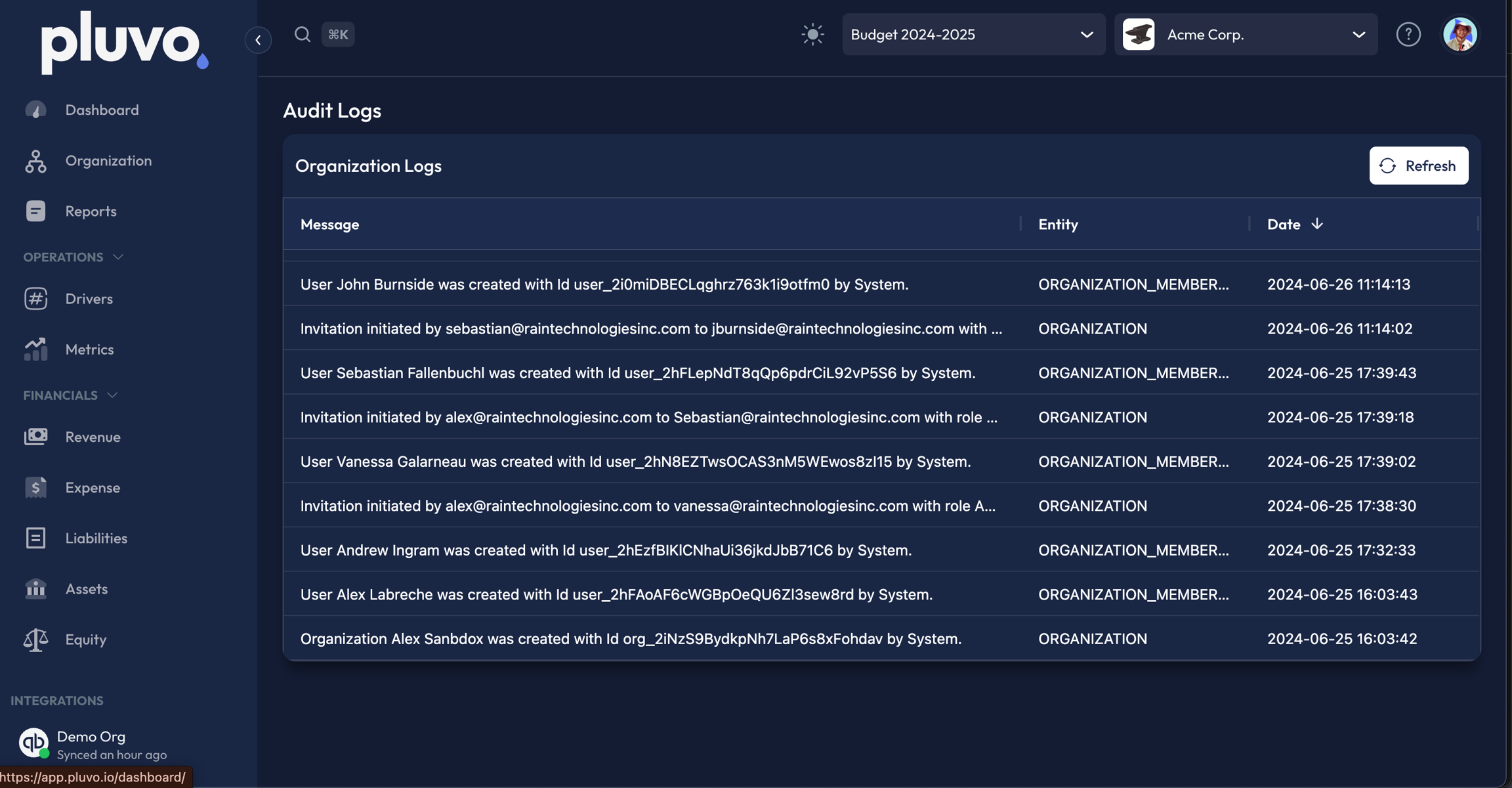
- [Forecast Configurations](https://docs.pluvo.io/modelling/settings/organization-settings/forecast-configurations.md): see: [Currencies](/modelling/concepts/currencies) for a list of supported currencies.
- [Integrations Settings](https://docs.pluvo.io/modelling/settings/organization-settings/integrations.md): The integrations tab is where you connect your financial data to Pluvo by data syncing with your accounting platform of choice.
- [Organization Management](https://docs.pluvo.io/modelling/settings/organization-settings/organization-management.md): Within this tab, you will be able to:
- [User Management](https://docs.pluvo.io/modelling/settings/organization-settings/user-management.md): The user management tab is where you will be able to add or remove users as well as adjust user permissions.
- [Changelog](https://docs.pluvo.io/overview.md): What's new and improved in Pluvo. Newest entries at the top.
- [Overview](https://docs.pluvo.io/overview-1.md): To receive additional support, or to suggest a new feature, visit our help portal [here](https://raintechnologies.atlassian.net/servicedesk/customer/portal/2).
- [Knowledge Graph](https://docs.pluvo.io/quickstart.md)
- [Reports](https://docs.pluvo.io/reports.md)